Hospitable Academy
Independent guide — not affiliated with Hospitable.
Hospitable Photos: How to Upload, Replace and Reorder
Where photos live in Hospitable, how per-channel publishing works, and what changes when Hospitable becomes the source of truth.
Last verified on 13 Oct 2026 against official docs.
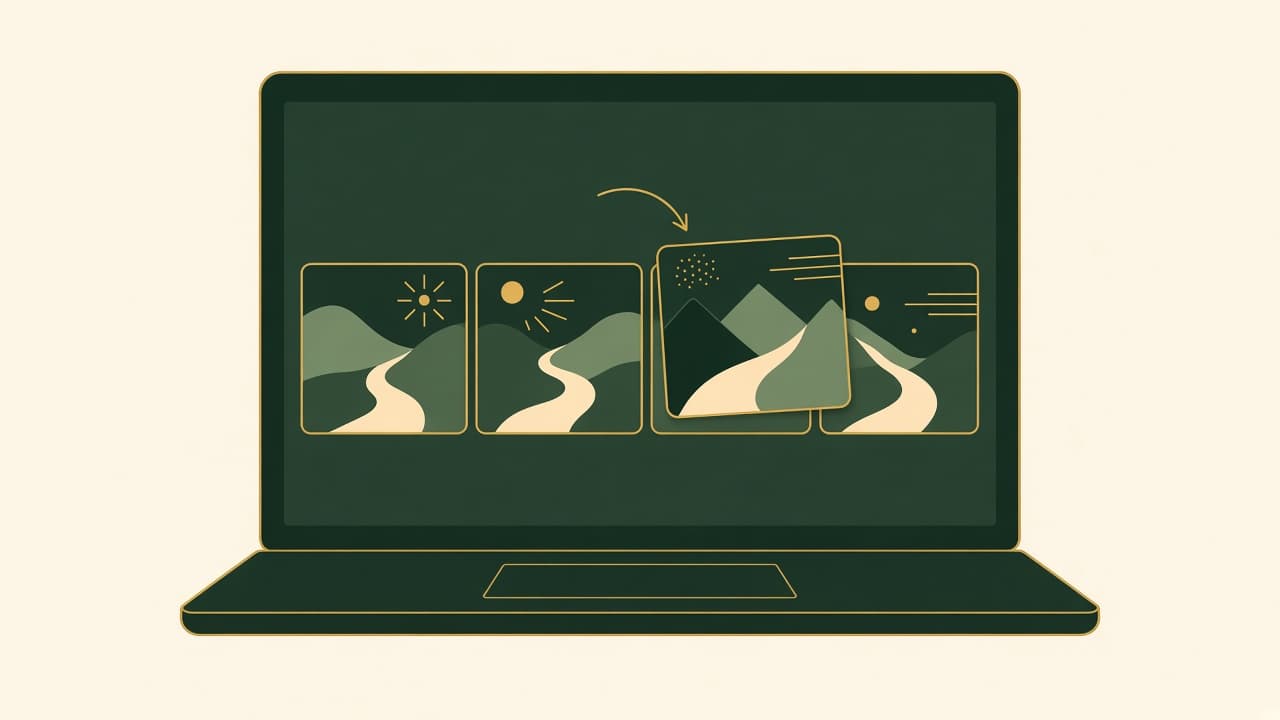
To manage photos in Hospitable, go to Properties → [property] → Details → Manage photos. From there you can Add photos (up to 30 per batch), Replace photo to upload higher-resolution originals, Re-order photos by drag and drop, and use the pencil icon to choose which channels each photo appears on, including Direct. Click Apply changes after editing a photo. Your first edit makes Hospitable the "source of truth," and it stops importing photo changes from Airbnb and other channels. Hero images for your Direct site are handled separately, under Direct Bookings → Websites → your site → Overview.
Independent publication. Direct Booking Academy is not affiliated with, endorsed by, or an official resource of Hospitable. Steps are from Hospitable's help center as of October 2026.
This guide is part of our Hospitable Academy, an independent collection of guides (not an official Hospitable resource).
Before you edit: the source-of-truth switch
When you first connect a listing, Hospitable imports its photos and removes duplicates across merged listings. It then keeps syncing photo updates from Airbnb, Booking.com and Vrbo Partner roughly every six hours. The first time you edit, reorder, replace, add or delete a photo, a one-time banner asks you to confirm. Once you confirm, Hospitable stops importing photo updates for that property and becomes the source of truth. From then on, make all photo changes in Hospitable (Managing photos).
On Airbnb, after the switch, changes made directly on Airbnb are not imported and will be overwritten during a future sync (same source).
Add photos
- Open Manage photos and click Add.
- Drag and drop files, or click to browse.
- Choose which channels should show the photos, and optionally set any as cover photos.
- Save.
You can upload up to 30 photos at a time. Upload another batch to add more. When you create a new property, the setup flow also accepts only 30, but you can add more afterwards (same source).
Replace photos with higher-quality versions
Photos imported from channels aren't always full resolution. Click Replace photo and upload your original files. You can upload a whole folder at once. Hospitable matches the uploads to your existing photos, improves quality where it can, adds any new photos it finds, and keeps your photo order, photo tour setup and photo settings (same source).
Direct Booking Academy's publisher also operates BNB Boost.
If you need better originals to replace with, BNB Boost works on vacation rental photo presentation.Reorder photos
- Click Re-order photos.
- Drag photos into the order you want.
- Click Save order (or Cancel).
Photo order is shared across all connected channels. Hospitable doesn't support a separate order for each channel. Google sets its own photo order on Google Vacation Rentals (Managing photos; GVR).
Choose channels and cover photos
Click the pencil icon on a photo to:
- Choose which channels show it under What channels should this photo display on? A photo appears on your Direct site only if Direct is selected.
- Set it as the cover photo for one or more channels. Each channel can have a different cover.
- Add a description, with the option of a different one for each platform (not available for Booking.com).
- Choose which section of your Direct site it appears in.
Then click Apply changes. To publish several photos everywhere, select them and use Sync to all channels (same source).
Delete photos
Use the pencil icon, then Delete photo (or select several photos and click Delete). You can't delete a cover photo until you've set a new one. Changes can take a minute or two to show on your Direct site. Airbnb limits a property management system to deleting 100 photos per listing per week, and Hospitable keeps retrying any deletions above that limit (same source).
Channel exceptions
- Vrbo Legacy: photos are imported once and never synced after that. Manage them in Vrbo.
- Vrbo Partner: Hospitable sends your photo order, but Hospitable says Vrbo currently uses its own AI to pick the cover and order. The help article links to Vrbo's opt-out form.
- Booking.com multi-room listings: Hospitable doesn't push photos to these. Use the Booking.com Extranet.
(All from Managing photos.)
Direct site hero images and video
Hero images are uploaded in the site editor, not under the property: Direct Bookings → Websites → your site → Overview. Add several images to make a slideshow, or upload a single video. Hospitable recommends high-resolution images, landscape orientation for banners, and no text or watermarks. Large images are optimized automatically. Layout and cropping depend on your template (Managing images on your Direct site).
Google Vacation Rentals photo rules
If you list on GVR through Hospitable, each property needs at least 8 high-resolution photos, at least one per room, in landscape orientation, as JPG, JPEG, WEBP or PNG. Changing photos on a live listing can restart Google's review (GVR).
Next: Hospitable Direct website examples, Hospitable Direct setup, Hospitable Direct not getting bookings, and the Lodgify equivalent, the Lodgify photo guide.
By Olivia Hart, who covers websites and photography for Direct Booking Academy. Written with AI assistance and reviewed by a human editor. Last verified: October 13, 2026.